 Loading... Please wait...
Categories
Our Newsletter
- Home
- Linux Tutorials
- Redo Rescue
Redo Rescue
Starting your PC using USB rescue media is not difficult, although it first requires an adjustment in the BIOS (Basic Input Output System). That’s because the BIOS settings include the boot sequence the machine follows when starting up. The boot order tells the machine which devices to search for the software needed to launch the computer and the priority each device in that search.
On Some computers you will need to disable SECURE BOOT in order to allow booting of not only this DVD / USB but any other software as well. Secure Boot can be easily disabled and you need to just follow the instructions on the other side of this sheet in order to disable it. Please note that if the USB or DVD boots just fine, you do NOT need to disable Secure Boot at all and as a result we urge you to try to boot it without disabling Secure Boot first.
If you’re booting from USB media, you must change the BIOS boot order so the USB device is listed first. Otherwise the computer will load from the hard drive as normal.
Start by plugging the thumb drive into a USB port. Then to change the BIOS boot sequence:
1. Press the Power button for your computer.
2. During the initial Startup screen, press ESC, F1, F2, F8 or F10. (Depending on the company that created your version of BIOS, a menu may appear.)
3. When you choose to enter BIOS Setup, the setup utility page will appear.
4. Using the arrow keys on your keyboard, select the BOOT tab. All of the available system devices will be displayed in order of their boot priority. You can reorder the devices here.
5. Move USB to be first in the boot sequence.
NOTE: If you cannot find USB or Removable Devices among the device options, your BIOS may list it under Hard Drive Devices. In that case, you’ll need to:
- · Move Hard Drive Devices to the top
- · Expand to show all hard drive device options
- · Move USB device to the top of that hard drive list
6. Save the change and then exit the BIOS Setup.
7. The computer will restart using the new settings, booting from your USB drive.
Stay alert! Depending on your BIOS, you may be prompted with a message to Press any key to boot from external device and you will only have a few seconds to respond. If you do nothing, your computer will go to the next device in the boot sequence list, which will likely be your hard drive.
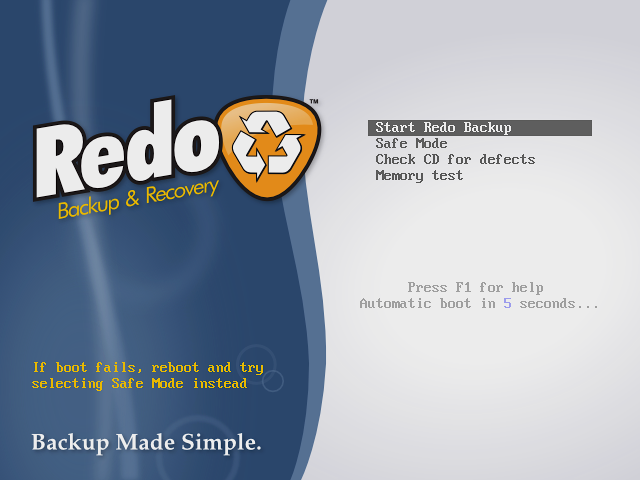
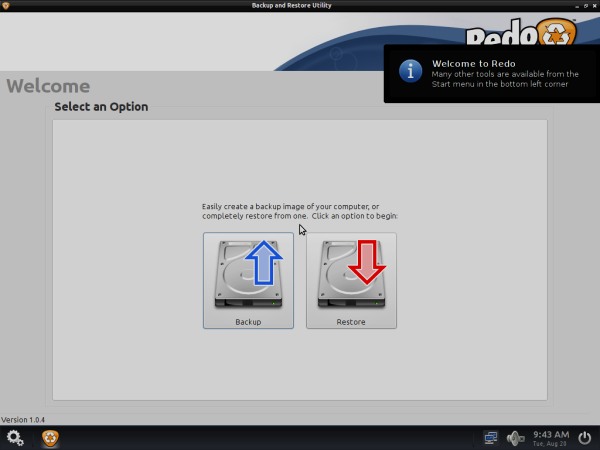
Once your system is finished booting from the USB or DVD, the backup system will loaded into memory which will launch Redo Backup. Now decide what you want to do, Backup machines or Restore machines from last saved images. For example, Here I’m taking my own Ubuntu 12.10 system backup, follow the screen grabs below for your reference.
|
|
Click on “Start Redo Backup“. |
|
1 Easily create a backup image of your computer or completely restore from one. Click on “Backup” to create full system backup. |
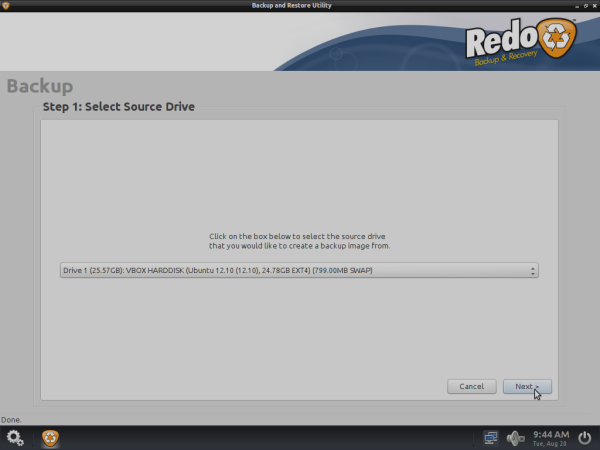
2 Select the source drive from the drop-down list that you would like to create a backup image from. Click on “Next“.
|
|
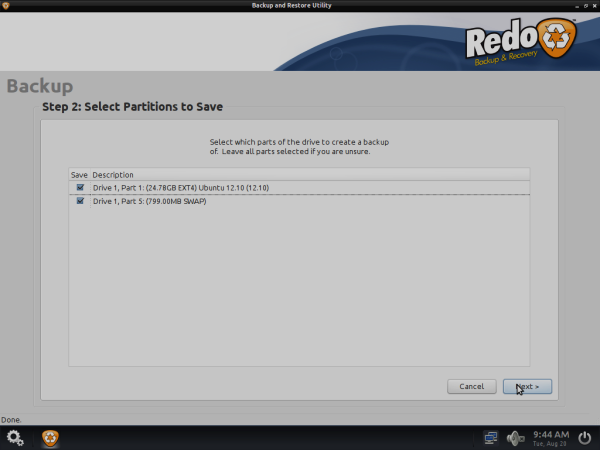
3 Select Partition Select which parts of the drive to create backup of. Leave all parts selected if you are unsure. Click on “Next“. |
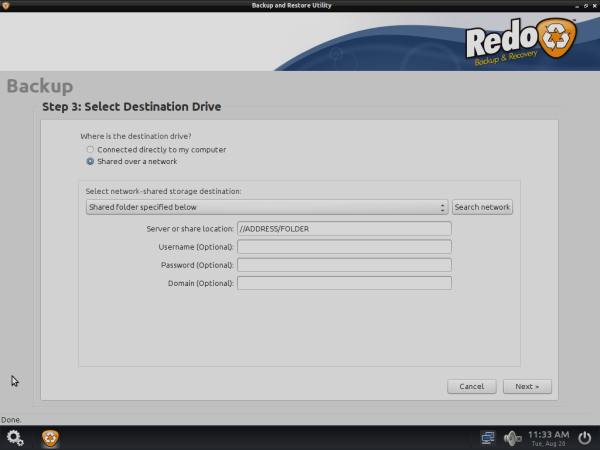
4 Select Destination Drive it could be local drive connected to your computer or shared network drive.
|
Next it will ask you to give unique name for this backup image, such as the “date“. Today’s date is automatically entered for you like “20220320“.
Next it will begin backing up your system to the location you selected. This may take an hour or more depending on the speed of your computer and the amount of data you have.
That’s it, you successfully created backup image for your computer. If you would like to Restore this image on any other computer follow the same procedure and select “Restore“, then follow on-screen instructions.
